
mtfTM105v2
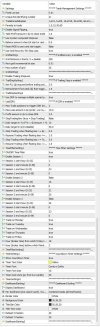
Recommended Symbol : GOLD, XAUUSD.
Recommended TF : H1 (even though you can set it up to trade 4 different TF).
Fixed Lot Size - Notice this EA uses Fixed Lot Size only.
Base magic number + period - You only need to specify the Base magic number. For different trading periods you chose, it will add to the base magic number so that a different magic number is used and managed separately by EA.
Periods to trade - Enter 15 for M15, 30 etc separated by comma. E.g. 15, 30, 60, 240 if you want the EA to trade all 4 timeframes.
Balance amount when EA start or restarted - This is the balance amount on your account when you first start with the EA. It will track the account growth based on this amount. If you set to zero, EA will use the current balance instead so each time you restart the EA, a different balance amount may be used depending on what balance your account currently has.
Reset MDD to zero and start again - EA track the Max Drawdown since it started. True = reset the MDD back to zero every time EA start.
Use MA for filtering - True = use MA to filter for better trades but the number of trades will be lesser.
Pending Order is placed at price + <Spread> - Buy and Sell Stop order is placed at price plus (or minus for Sell) the current Spread.
Multiply factor for TP - You can increase the TP amount by factor e.g. 1.5 means 0.5x more.
Minimum TP amount after Multiply factor - If the TP amount after multiply factor is still too small, you can specify the minimum TP amount then the TP will be calculated to this minimum TP amount. Default is 2.00 i.e. TP will have at least $2.00. Note: If your fixed lot size is 1 then Minimum TP of 2.00 may not make sense if the calculated TP with 1 Multiply factor 1.0 remains small. $2.00 TP is easily achieved with lot size = 1.
Use System computed SL - True = EA will automatically calculated the SL. Note: You have to set to False if you are using GRID/DDR to manage losses. Default = False.
Use Grid instead of SL - True = EA will use GRID/DDR instead of SL. Default = True. Note: You can either use System computed SL or use Grid. Do not set both to True. Also note that if you set Grid = True, you will have to also set DDR to True otherwise Grid positions will be opened but will not be closed.
Grid Distance in Points - Default = 200 points. Next positions will be opened at 200 points away.
Next grid incremental lot size - Default = 0.01. The next lot size to open positions. E.g. if your initial lot size is 1, the next Grid incremental lot size will be 1.01, 1.02, 1.03, etc.
Max number of grid - The maximum number of grid positions that can be opened. Default = 20 meaning if the initial lot size is 0.01 then the max grid can be opened is 0.21.
Enable Trailing StopLoss - Default = True.
Net P/L ($) required before trailing activities. Default = $2.00
Retracement from peak ($) that triggers basket close. Default = 1.0
Note : This is not the normal trailing stop. It is Basket trailing stop meaning it will start to trail if the total profit of all trades is more than $2.00.
Use DDR to manage multiple opened positions. Default = True.
Max Trade positions to trigger DDR. Default = 2.
Max Loss amount in $x to trigger DDR. Default = $10.00
Profit Amount to close DDR. Default = $2.00
What is DDR ? E.g. if your System computed SL = False and Use GRID instead of SL = True, and further assume you currently have 5 opened positions e.g.
Lot 0.01 -$10.00
Lot 0.02 -$8.00
Lot 0.03 -$6.00
Lot 0.04 $7.00
Lot 0.05 $9.00
With DDR = True, Lot 0.05 and Lot 0.01 will be closed together if their total amount >= $2.00. In my opinion, this is a good way to manage GRID trading which most GRID/Martingale EA did not implement. DDR will only be triggered if there are 2 or more positions OR the total losses exceed $10.00. In order words, if you set Max Trade positions to 5 and your Max Loss amount to $10.00, DDR will still be triggered when your total loss >= $10.00 even though you may only have 2 positions opened by GRID. Note: DDR will overwrite and replace Basket Trailing SL.
StopTradingNow - Default = False. You can manually halt trading. No new positions will be opened but EA will continue to manage the opened positions (using DDR).
Daily target in %. Default = 10%
Daily target in $ (per TF) = $50
You can either set your daily target in fixed amount or in percentage. Note: if you set both, then % daily target will overwrite $ target whichever is bigger. E.g. your starting balance is $1000. Daily target of $10% is $100. So $100 will be used instead of $50.
Stop Trading when floating loss >= $
Resume Trading when floating loss <= $
Stop Trading when floating loss >= %
Resume Trading when floating loss <= %
You can temporarily halt trading when you loss exceed $X amount or $% and resume trading when floating loss fall below $Y amount or $Y%. Note: when you set a small % or $ amount, Max number of grid positions will also halt if the total loss amount is reached. GRID/DDR will be disabled i.e. it will not be triggered until Resume Trading is restored. Stop/Resume Trading setting is a double protection for trading GRID/DDR but it also means fewer opened positions and using DDR to manage losses will no longer be effective.
TimeFilter Setting
There are 3 sessions timing for you to setup for trading. Pretty straight forward but note that the timing is the broker time and not your VPS computer time. For simplicity, just looked at the time on the chart. If you want trading to start at 01:00 and end at 23:00, then Session 1 Start Hour = 1 and End Hour = 23. (i.e. Default settings).
Trade on Monday … Friday Setting
Monday Start Hour and Friday End Hour setting
You can set the trading hour to start on Monday and trading hour to end on Friday. This is to prevent sudden gap on Monday morning and to have ample time for DDR to close all floating loss position before ending trading session on Friday. Note: It is recommended not to left positions opened over the weekend to avoid swap fee and Monday morning gapping.
Show Countdown Timer setting
These settings display the countdown timer for the running candle on the chart.
Dashboard setting
These settings display the dashboard information. Pretty standard settings except Dasboard layout. Combined totals will display 1 column of information if you have select to trade multiple timeframe. Per Timeframe (one column each) will show multiple column, each with different timeframe. For VPS with limited RAM, it is recommended to set Display Dashboard = False.
mtfAIzigV2
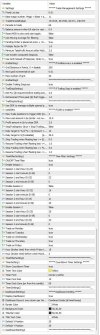
Recommended Symbol : GOLD, XAUUSD.
Recommended TF : M1 (even though you can set it up to trade 5 different TF).
Most of the settings are similar to mtfTM105 except the following:
Unique EA identifying number - You can choose to trade on multiple TF but the EA will execute decision based on M1 TF therefore the EA will only use 1 Magic Number even multiple timeframe are traded. This is because the EA uses Trend Regression Channel to filter trading signal and trend regression channel is computed using M1 time frame.
Enable Signal Flipping - Default = True. If a Buy signal appears at the upper regression channel, flip the slip to Sell. Same for Sell signal.
The remaining settings are the same as in mtfTM105v2.
Recommended Symbol : GOLD, XAUUSD.
Recommended TF : H1 (even though you can set it up to trade 4 different TF).
Fixed Lot Size - Notice this EA uses Fixed Lot Size only.
Base magic number + period - You only need to specify the Base magic number. For different trading periods you chose, it will add to the base magic number so that a different magic number is used and managed separately by EA.
Periods to trade - Enter 15 for M15, 30 etc separated by comma. E.g. 15, 30, 60, 240 if you want the EA to trade all 4 timeframes.
Balance amount when EA start or restarted - This is the balance amount on your account when you first start with the EA. It will track the account growth based on this amount. If you set to zero, EA will use the current balance instead so each time you restart the EA, a different balance amount may be used depending on what balance your account currently has.
Reset MDD to zero and start again - EA track the Max Drawdown since it started. True = reset the MDD back to zero every time EA start.
Use MA for filtering - True = use MA to filter for better trades but the number of trades will be lesser.
Pending Order is placed at price + <Spread> - Buy and Sell Stop order is placed at price plus (or minus for Sell) the current Spread.
Multiply factor for TP - You can increase the TP amount by factor e.g. 1.5 means 0.5x more.
Minimum TP amount after Multiply factor - If the TP amount after multiply factor is still too small, you can specify the minimum TP amount then the TP will be calculated to this minimum TP amount. Default is 2.00 i.e. TP will have at least $2.00. Note: If your fixed lot size is 1 then Minimum TP of 2.00 may not make sense if the calculated TP with 1 Multiply factor 1.0 remains small. $2.00 TP is easily achieved with lot size = 1.
Use System computed SL - True = EA will automatically calculated the SL. Note: You have to set to False if you are using GRID/DDR to manage losses. Default = False.
Use Grid instead of SL - True = EA will use GRID/DDR instead of SL. Default = True. Note: You can either use System computed SL or use Grid. Do not set both to True. Also note that if you set Grid = True, you will have to also set DDR to True otherwise Grid positions will be opened but will not be closed.
Grid Distance in Points - Default = 200 points. Next positions will be opened at 200 points away.
Next grid incremental lot size - Default = 0.01. The next lot size to open positions. E.g. if your initial lot size is 1, the next Grid incremental lot size will be 1.01, 1.02, 1.03, etc.
Max number of grid - The maximum number of grid positions that can be opened. Default = 20 meaning if the initial lot size is 0.01 then the max grid can be opened is 0.21.
Enable Trailing StopLoss - Default = True.
Net P/L ($) required before trailing activities. Default = $2.00
Retracement from peak ($) that triggers basket close. Default = 1.0
Note : This is not the normal trailing stop. It is Basket trailing stop meaning it will start to trail if the total profit of all trades is more than $2.00.
Use DDR to manage multiple opened positions. Default = True.
Max Trade positions to trigger DDR. Default = 2.
Max Loss amount in $x to trigger DDR. Default = $10.00
Profit Amount to close DDR. Default = $2.00
What is DDR ? E.g. if your System computed SL = False and Use GRID instead of SL = True, and further assume you currently have 5 opened positions e.g.
Lot 0.01 -$10.00
Lot 0.02 -$8.00
Lot 0.03 -$6.00
Lot 0.04 $7.00
Lot 0.05 $9.00
With DDR = True, Lot 0.05 and Lot 0.01 will be closed together if their total amount >= $2.00. In my opinion, this is a good way to manage GRID trading which most GRID/Martingale EA did not implement. DDR will only be triggered if there are 2 or more positions OR the total losses exceed $10.00. In order words, if you set Max Trade positions to 5 and your Max Loss amount to $10.00, DDR will still be triggered when your total loss >= $10.00 even though you may only have 2 positions opened by GRID. Note: DDR will overwrite and replace Basket Trailing SL.
StopTradingNow - Default = False. You can manually halt trading. No new positions will be opened but EA will continue to manage the opened positions (using DDR).
Daily target in %. Default = 10%
Daily target in $ (per TF) = $50
You can either set your daily target in fixed amount or in percentage. Note: if you set both, then % daily target will overwrite $ target whichever is bigger. E.g. your starting balance is $1000. Daily target of $10% is $100. So $100 will be used instead of $50.
Stop Trading when floating loss >= $
Resume Trading when floating loss <= $
Stop Trading when floating loss >= %
Resume Trading when floating loss <= %
You can temporarily halt trading when you loss exceed $X amount or $% and resume trading when floating loss fall below $Y amount or $Y%. Note: when you set a small % or $ amount, Max number of grid positions will also halt if the total loss amount is reached. GRID/DDR will be disabled i.e. it will not be triggered until Resume Trading is restored. Stop/Resume Trading setting is a double protection for trading GRID/DDR but it also means fewer opened positions and using DDR to manage losses will no longer be effective.
TimeFilter Setting
There are 3 sessions timing for you to setup for trading. Pretty straight forward but note that the timing is the broker time and not your VPS computer time. For simplicity, just looked at the time on the chart. If you want trading to start at 01:00 and end at 23:00, then Session 1 Start Hour = 1 and End Hour = 23. (i.e. Default settings).
Trade on Monday … Friday Setting
Monday Start Hour and Friday End Hour setting
You can set the trading hour to start on Monday and trading hour to end on Friday. This is to prevent sudden gap on Monday morning and to have ample time for DDR to close all floating loss position before ending trading session on Friday. Note: It is recommended not to left positions opened over the weekend to avoid swap fee and Monday morning gapping.
Show Countdown Timer setting
These settings display the countdown timer for the running candle on the chart.
Dashboard setting
These settings display the dashboard information. Pretty standard settings except Dasboard layout. Combined totals will display 1 column of information if you have select to trade multiple timeframe. Per Timeframe (one column each) will show multiple column, each with different timeframe. For VPS with limited RAM, it is recommended to set Display Dashboard = False.
mtfAIzigV2
Recommended Symbol : GOLD, XAUUSD.
Recommended TF : M1 (even though you can set it up to trade 5 different TF).
Most of the settings are similar to mtfTM105 except the following:
Unique EA identifying number - You can choose to trade on multiple TF but the EA will execute decision based on M1 TF therefore the EA will only use 1 Magic Number even multiple timeframe are traded. This is because the EA uses Trend Regression Channel to filter trading signal and trend regression channel is computed using M1 time frame.
Enable Signal Flipping - Default = True. If a Buy signal appears at the upper regression channel, flip the slip to Sell. Same for Sell signal.
The remaining settings are the same as in mtfTM105v2.